
Create Images
Turn a description into images, edit with reference photos, and point at each reference with @.
Open Image →Your first image

- Open Image from the left menu.
- Describe the image you want in the prompt box.
- Choose a model, then set the resolution, ratio and how many images to make.
- Check the credit cost next to the button and click Generate.
You can leave the page while the image is being made. It keeps going in the background and appears when you return.
Resolution, ratio and count
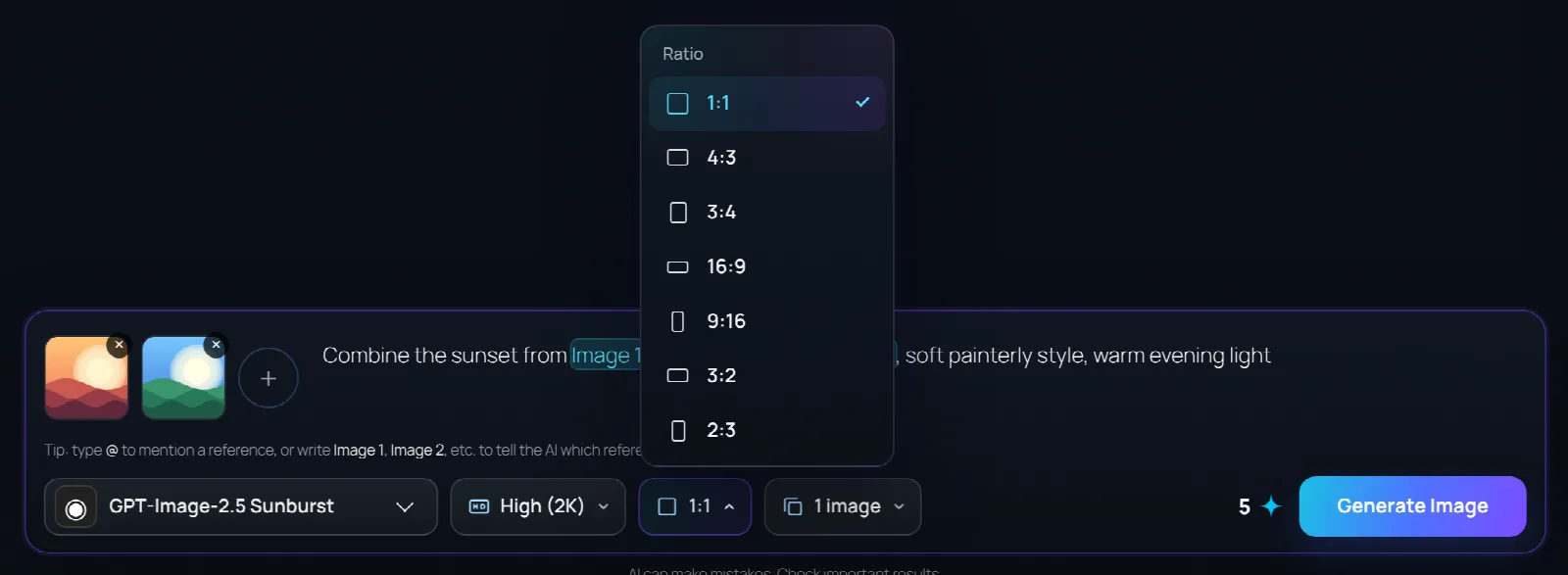
- Resolution: High (2K), Ultra (3K) or Ultra (4K). Higher resolution gives more detail and costs more.
- Ratio: 1:1 square, 4:3 / 3:4, 16:9 / 9:16 for widescreen and phone screens, 3:2 / 2:3 for photos.
- Images: make 1 to 4 versions at once. You pay per image.
Use reference images
Click Reference (or drag photos onto it) to add up to 4 reference images: JPG, PNG, WEBP, GIF, BMP, TIFF or HEIC, up to 10 MB each. Click a reference to see it larger, or × to remove it.
References let you edit a photo (“make the sky sunset orange”), keep a character or product consistent, or combine several images into one scene.
Point at a reference with @
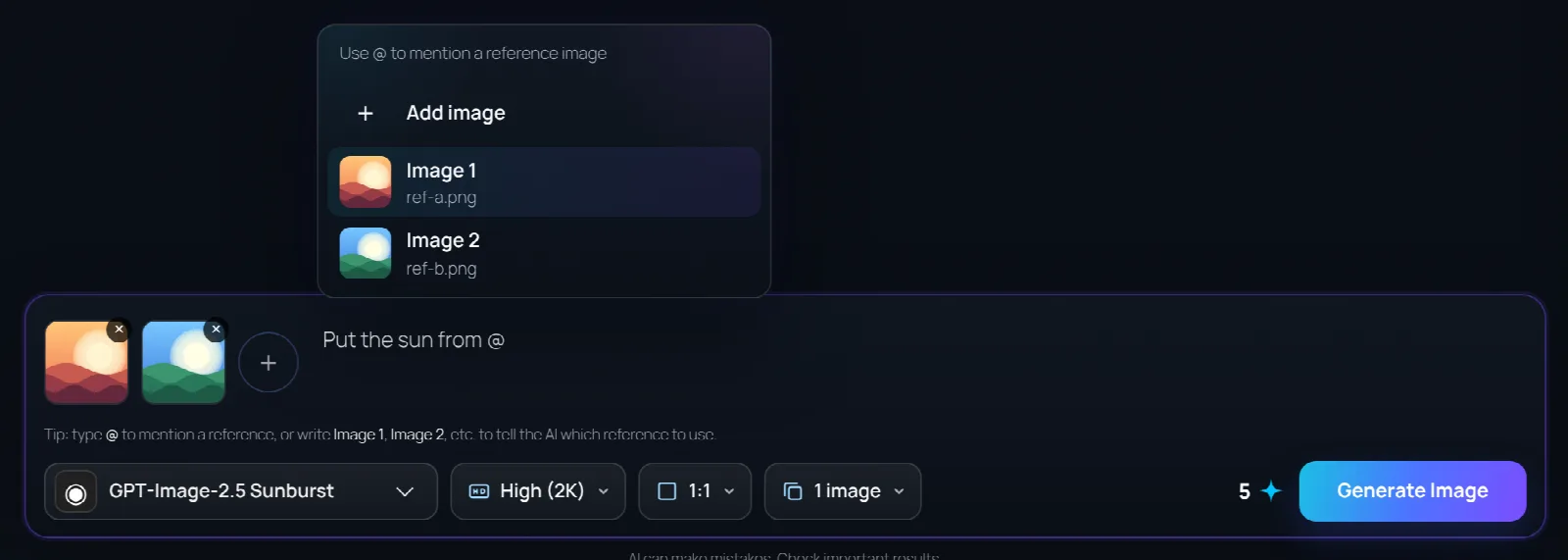
- Type @ in the prompt. A menu lists your references (and “Add image” to upload another).
- Pick one with the mouse, or with the arrow keys and Enter. The prompt gets Image 1, Image 2… highlighted in colour.
- Describe what to do with each one, for example: Put the cat from Image 1 on the sofa from Image 2.
You can also just type “Image 1”, “Image 2”. If you remove a reference, the numbers in your prompt update automatically. A red highlight means that reference no longer exists.
Results and history
- Download saves the image; Regenerate runs the same prompt and settings again for a new variation.
- Your recent images are in the history panel. Click one to see it full size, download it, or Reuse Prompt to load its prompt, settings and references back into the composer.